
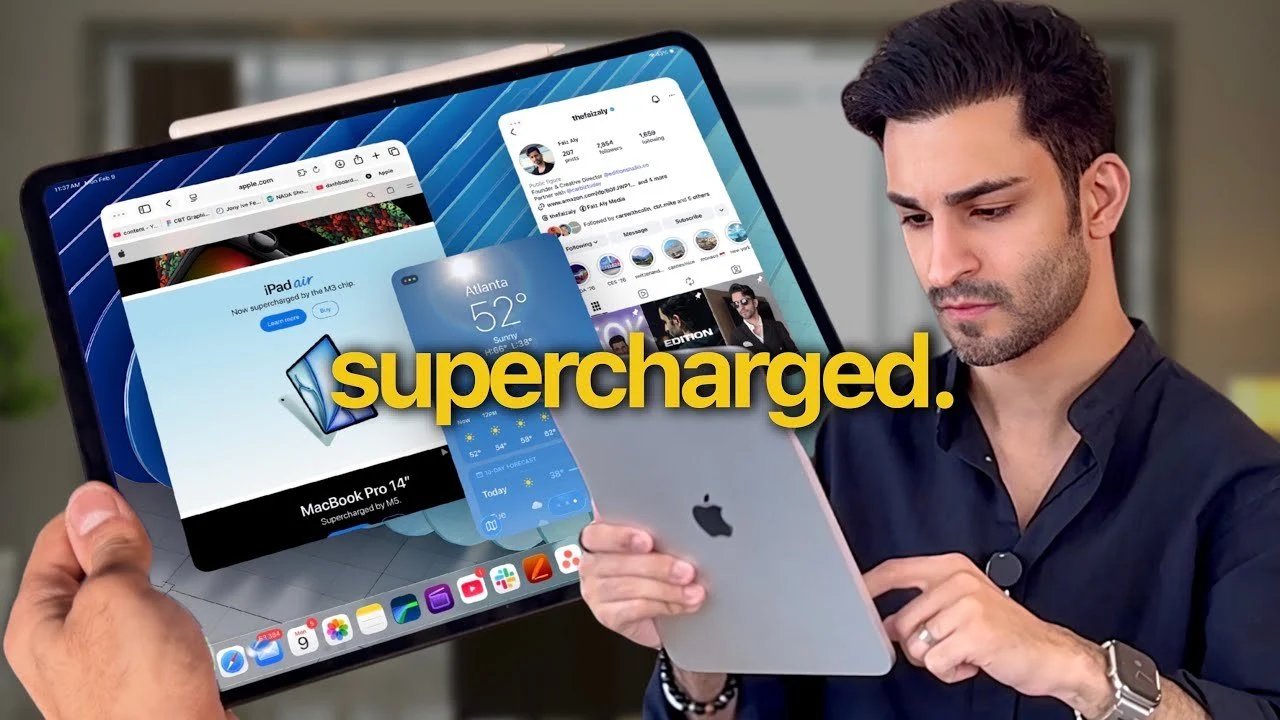
Have you ever wondered whether you’re really getting the most out of your iPad? With iPadOS 26, Apple has introduced a suite of features that can completely change the way you use your device, but only if you know how to unlock their potential. Faiz Aly explains how these updates can enhance your productivity, creativity, and even your daily routine in ways you might not expect. From mastering multitasking to using hidden gestures, this breakdown reveals the small but powerful changes that could make your iPad feel like a brand new device in 2026. Whether you are a seasoned professional or a casual user, there is something here that can redefine your experience.
In this guide, you’ll learn how to optimize multitasking with the new Stage Manager layout, streamline your workflow with better file management, and even how to turn your iPad into a secondary display for your Mac. You’ll also learn about surprisingly intuitive gestures and advanced keyboard features that can save you time and effort. These aren’t just tips, they’re great options for anyone looking to make using their iPad more efficient and enjoyable. If you’re ready to uncover features that could change the way you interact with your device, keep reading, you might just find your favorite new feature.
iPadOS 26 tips and tricks
TL;DR Key Facts:
- Advanced Multitasking: iPadOS 26 introduces seamless transitions between full-screen apps, windowed apps, and Stage Manager, enhancing multitasking with customizable settings and intuitive gestures.
- Better file and dock management: Optimize productivity by organizing frequently used apps in the Dock and using the advanced Files app for integrated document and cloud storage management.
- Advanced Apple Pencil Features: New capabilities like quick notes from the lock screen, precise shape creation, and advanced annotation tools make the Apple Pencil more versatile for professionals and creatives.
- Personalization and Customization: Customize your iPad experience with widgets, custom fonts, wallpapers, and adjustable icon sizes for a cleaner, more functional interface.
- Safari and app upgrades: Turn websites into home screen apps, open multiple app windows, and share Safari tabs across devices for better multitasking and browsing continuity.
Master Multitasking with iPadOS 26
Multitasking on iPad reaches a new level of convenience with iPadOS 26. The system now allows seamless transitions between full-screen apps, windowed apps, and Stage Manager layouts. To take full advantage of these multitasking features:
- Access multitasking settings in Control Center to customize your preferences for split-screen and floating windows.
- Use intuitive gestures to seamlessly switch between apps, like a four-finger swipe or dragging the white bar at the bottom of the screen.
These tools make it easy to manage multiple tasks at once, whether you’re working on a project, attending a virtual meeting, or organizing your daily schedule.
Customize the Dock and file management
The Dock and Files apps are essential for efficient navigation and organization. By customizing these tools, you can save time and reduce clutter:
- Drag and drop your most-used apps and folders into the Dock for quick access, ensuring your workflow remains seamless.
- Use the advanced Files app to organize documents, downloads, and cloud storage in one unified place.
These small adjustments can significantly improve your productivity by reducing the time you spend searching for files or apps.
iPad Productivity Tips and Tricks for 2026
Here are additional guides from our extensive article library that you may find useful on iPad productivity.
Navigate faster with gestures
Gestures are a cornerstone of iPadOS 26, designed to make navigation more intuitive and efficient. Key gestures to master include:
- Using the search bar for quick tasks like conversions, calculations, or finding apps and files.
- Pinching with five fingers to close apps or swiping up from the bottom of the screen to access the app switcher.
These shortcuts allow you to navigate your iPad easily, helping you focus on your tasks without unnecessary interruptions.
Unlock advanced keyboard features
The iPad keyboard has evolved to include features that enhance typing and editing efficiency. To get the most out of these capabilities:
- Enable the split or floating keyboard on the smaller iPad for more comfortable typing.
- Use the space bar as a trackpad for precise cursor control, making text editing faster and more precise.
- Swipe down on keys to reveal hidden symbols and numbers, reducing the need to switch between keyboard layouts.
These features are especially useful for text-heavy tasks, allowing you to work more efficiently.
Declutter and organize your home screen
A well-organized home screen can improve focus and usability. With iPadOS 26, it’s easier than ever to keep your interface clean and functional:
- Send newly downloaded apps directly to the App Library instead of cluttering your home screen.
- Enable App Library access in the Dock for quick navigation to all your apps.
These features ensure that your home screen stays clean, so you can focus on the apps and tools you use most.
Maximize Apple Pencil Capabilities
The Apple Pencil remains a powerful tool for both creativity and productivity. iPadOS 26 introduces new features that make the Apple Pencil even more versatile:
- Access Quick Notes directly from the lock screen to capture ideas instantly.
- Create perfect shapes by holding the pencil in place after sketching, which is ideal for diagrams and pictures.
- Use Pencil for precise editing and annotation in documents, PDFs or images.
These enhancements make the Apple Pencil an essential accessory for professionals, students, and artists.
Personalize your iPad experience
Customization options in iPadOS 26 allow you to tailor your iPad to your preferences and needs. Key personalization features include:
- Adding widgets, custom fonts, and wallpapers to your lock screen for a more personalized look.
- Freely arranging apps and widgets on the home screen for better accessibility.
- Adjusting icon size to create a cleaner and more organized interface.
These options ensure that your iPad not only looks unique but also functions in a way that aligns with your workflow.
Use Safari and App Enhancements
Safari and other apps have received significant upgrades in iPadOS 26, making them more versatile and user-friendly. Notable improvements include:
- Convert frequently visited websites to home screen apps for quick access.
- Opening multiple windows of the same app, such as two Safari tabs or a Notes document, to enhance multitasking.
- Sharing Safari tabs across Apple devices via iCloud, ensuring seamless browsing continuity.
These updates enhance your browsing experience and improve the functionality of your favorite apps.
Use your iPad as a secondary display
The iPad’s ability to act as a secondary display for your Mac is a great option for multitasking and productivity. With full support for trackpad, keyboard, and Apple Pencil, this feature is ideal for:
- Expanding your workspace, allowing you to manage multiple tasks on two screens.
- Using the Apple Pencil for precise input in creative or professional applications like graphic design or photo editing.
This seamless integration between devices makes the iPad an invaluable tool for professionals and creative people.
Customize Control Center
Control Center is the hub for quick access to essential tools and settings. iPadOS 26 allows you to better customize it to suit your needs:
- Add controls for features like screen recording, voice memos, and shortcuts to streamline your workflow.
- Rearrange the layout to prioritize the tools you use most often.
This flexibility ensures that your most used features are always within reach, saving you time and effort.
Enhance your iPad experience
iPadOS 26 introduces a wealth of features designed to make your iPad more powerful, efficient, and personalized. From advanced multitasking capabilities to enhanced Apple Pencil functionality, these tips and tricks can help you unlock your device’s full potential. By mastering these features, you can turn your iPad into an indispensable device for work, creativity, and entertainment.
Media Credit: Faiz Ali
Disclosure: Some of our articles contain affiliate links. If you buy something through one of these links, Geeky Gadgets may earn an affiliate commission. Know about us Disclosure Policy.
